
Why so many feeds play muted, and what captions fix
Social feeds start videos silently and viewers keep them that way in public. Here is why, what you lose without captions, and how to caption well.
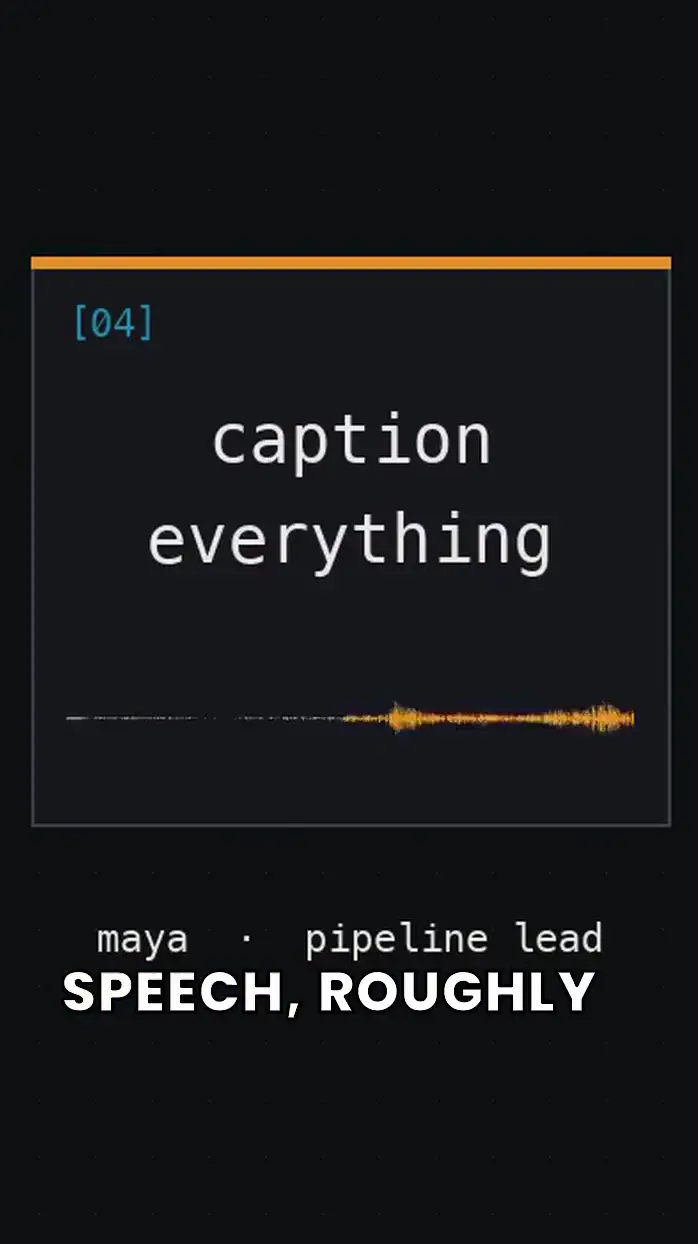
Many feeds start videos with the sound off, and many viewers leave it off: on a train, in an office, next to a sleeping child, or simply because they are scrolling fast. A talking-head video without captions shows these people a moving mouth and nothing else, so they swipe past. Captions turn the speech into something a silent viewer can follow, which keeps your message intact for everyone who never taps the speaker icon. The rest of this post covers why muted viewing is the default, what goes missing without captions and what good captions look like.
Why feeds start silent
Autoplay is the reason. A feed wants motion to catch your eye as you scroll, so videos begin playing the moment they appear. If every one of them started with sound, scrolling a feed in public would be loud and embarrassing, and people would stop opening the app in places where they can't make noise.
So most platforms made a trade. Videos autoplay, but quietly, at least until the viewer signals they want audio. Browsers have pushed in the same direction: they generally block websites from autoplaying with sound unless the user has interacted with the page. The details differ by platform and setting, and some apps turn sound on once you start engaging with a video. The starting point, though, is very often silence.
Why viewers keep it that way
Even when unmuting is one tap away, plenty of people don't tap. A few common reasons:
- They are in public. Commutes, waiting rooms, open-plan offices and libraries are exactly where people scroll, and exactly where playing audio feels rude.
- They are multitasking. Someone half-watching while music or a podcast plays elsewhere has no interest in a second audio source.
- They are deciding. Unmuting is a small commitment. Viewers often watch a few seconds first to judge whether the video is worth hearing.
- They can't hear it well, or at all. Deaf and hard-of-hearing viewers, and people with a noisy background or a weak speaker, depend on text either way.
- They are reading in another language. A viewer who follows written English more easily than spoken English benefits from seeing the words.
None of these viewers is uninterested. They are simply watching under conditions where sound is unavailable or unwelcome.
What a silent viewer misses
Think about what different kinds of video lose when the sound is gone.
Talking-head and explainer videos lose almost everything. The picture is a face; the value is the words. Without captions, the viewer has no way to know whether the speaker is about to say something useful.
Interview and podcast clips lose the hook. These clips usually work because of one strong line. If that line is only audible, the silent scroller never meets it.
Tutorials lose the instructions. You might see hands moving in a recipe or a software walkthrough, but the reason behind each step is often spoken.
Product and brand videos lose the call to action. A name, an offer or a next step that is only spoken goes unheard.
Music-led videos, by contrast, usually need fewer captions, though lyrics on screen can still help.
What captions fix
Captions do several jobs at once.
They make the first seconds readable
A silent viewer decides whether to stay within a few seconds. Captions let them read your opening line and judge it, the same way a listener would. A clear opening sentence on screen is often what earns the tap on the speaker icon.
They carry the meaning when audio never arrives
For the viewer who keeps sound off from start to finish, captions are the content. They should be complete enough that someone could follow the whole video without hearing it.
They make the video accessible
Captions are how deaf and hard-of-hearing viewers follow speech. Accessible video is not an extra; it reaches more people, and in some settings, such as education or public services, it may be expected or required.
They help with clarity
Accents, fast speech, background noise and technical terms are all easier to follow with the words on screen. Even viewers listening with sound often read along.
They give search and platforms more to work with
Uploading a subtitle file alongside a video gives platforms a text version of what is said. Where a platform supports subtitle files, that text can help with accessibility features and with understanding what the video is about.
Burned-in captions vs a subtitle file
There are two ways to deliver captions, and muted feeds favour one of them.
Burned-in captions are drawn into the picture itself. They show up everywhere the video plays, on every app, with no setting to turn on. That is what the silent scroller needs, because they will never open a caption menu.
Subtitle files such as SRT and VTT sit beside the video. Viewers can turn them on or off, and players can restyle them. They suit platforms with good caption support, longer videos and viewers who want control.
Many creators use both: burned-in captions for short vertical clips in feeds, and a subtitle file for long-form platforms. We compare them in detail in Burned-in vs SRT captions: when to use which.
What makes captions work in a feed
Feed captions have different needs from film subtitles. A few habits help.
Show a few words at a time. Short chunks are easier to read at a glance than two full lines. Word-by-word highlighting helps the eye keep pace with the speaker.
Keep them big and high-contrast. Viewers watch on phones, often at arm's length, sometimes in sunlight. Bold text with an outline, a shadow or a background box stays readable over busy footage.
Place them clear of the interface. Vertical apps lay buttons, usernames and descriptions over the video. Captions hidden under those elements are wasted. See Caption safe zones on vertical video for how to plan around them.
Check the words. Automatic transcription is good but not perfect. Names, brand terms, numbers and slang are the usual mistakes. One wrong word in a caption that every viewer reads is more visible than a slip in speech.
Match the tone. A playful karaoke look suits an energetic clip. A calm text-on-a-bar look suits a tutorial or an interview. Pick a style that fits the voice of the video rather than the loudest one available.
A simple workflow
- Finish the edit first. Captions should be the last step, so cuts don't shift them out of sync.
- Transcribe automatically. Let speech recognition produce the words with their timings.
- Read through and correct. Fix names, jargon and anything misheard.
- Choose a look, position and size. Pick placement with the target app's buttons in mind.
- Export both versions. Keep the burned-in video for feeds and the subtitle file for platforms that accept one.
In Auto Captions, that is: upload the finished MP4 or MOV, choose a look, position and size, then download the captioned video along with SRT and VTT files. If a word is wrong, fix it in the word editor and render again without transcribing a second time.
The short version
Feeds autoplay quietly, and many viewers keep the sound off because of where they are or what else they are doing. For speech-led video, that silence removes the message. Captions put the words back on screen, make the opening readable, help viewers who can't hear and reduce misunderstandings. Burn them in for feed clips, keep a subtitle file for platforms that support one, and always read them through before you post.
Caption a video you have
Upload it, read the exact credits, pick a look. Same job from the browser, the API or your assistant.